Showing posts with label tips. Show all posts

Friday, January 25, 2008

Curse you, Inkwell! Why won't you get quotes right!?!

InkSpatter1-25-2008

Of all of Inkwell's quirks, it's handling of quotes drives me insane. Take a look at the following examples:

"1" "12" 11 I 23"

It seems to do better with "longer" words, but then it decides to NOT do CC better". Sometimes the results appear almost random.

One of the culprits is whether the quote is curved or not. From my experimentation, I have found Inkwell definitely prefers the straight quotes as opposed to ones with a curve. However, there are certain limitations that cannot be worked around. For example, let's assume you put something in quotes and INkwell gets the left quotes wrong (which it Often doe s for me). Try selecting the quotes and just rewriting new ones. You can't. The strokes are too short. Inkwell doesn't recognize them. You are better off reaching for the keyboard, but darned if I don't catch myself trying to get the quotes right over and over again instead.

If you have a knack to getting Inkwell to give you perfect quotes, please leave it in the comments. I'm sure other Inkwell users would appreciate knowing your trick. In the meantime, my advice is to keep those quote marks as straight up and down as possible.

-Doug!as

tags technorati:

  Respond  using  Inkwell  if  you Can... 

Making Use of Inkwell's Word List

Ink Prefs Word List

Many words are part of Inkwell's dictionary. This dictionary helps Inkwell recognize what you are writing despite errors. However, if Inkwell's crack recognition is less than par for you on certain words that you use frequently, you may consider adding them to the Word List. I have done this with family names and found it immensely helpful.

If a word is already in the Inkwell dictionary you will receive a notification like this:
Redundant

-Doug!as

tags technorati:

  Respond  using  Inkwell  if  you Can... 

Inkwell R vs. N Rumble!

InkSpatter1-25-2008

Ever find yourself typing an [( r" with the keyboard because Inkwell thinks all your little Rs are Ns, or even Ps? Well, have no fear. Here is a tip you're sure to appreciate.

Try writing your "r" more angular.


As you can see in the example, none of the Rs curve down. Using this type of 11 r" I have had 100% accuracy. I wish the same could be said of quotes.

-Doug!as

tags technorati:

  Respond  using  Inkwell  if  you Can... 

Monday, August 13, 2007

Signing Your Email with Skitch

Almost a year ago, I wrote about signing email using Inkwell's doodling pad. The big hang up for this method was that the Ink window saved the sigs in tiff format. Not an issue for Mac usens, but a big issue for PC users who would onlyseethe sig as an attachment and as a non_ Windows standard graphic at that.

So what to do? Well, hacking 0SX wasn't feasible. There was no way I could find to change Inkwell's prefs to save as GIF or JPG. I could paste the sig into Photoshop and save it in a better format, but who wants to bother withthat? No simple solutions.

Then I discovered Skitch! I was lucky enough to Scone a beta invite. Now I can't imagine living without if.

Here's how you put Skitch and your tablet to use for signing emails:


  1. Make a template blank and save for later.


  2. Wipe the template, scrawl your signature, and drag the sig into your email.


  3. Enjoy your snazzy hand-signed email.


So there yOU are. Not an Inkwell specific tip, but a useful one nonetheless. Old school meets new school thanks to the Convenience of Skitch.


-Doug!as


If you like this article please digg it!
tags technorati:

  Respond  using  Inkwell  if  you Can... 

Tuesday, May 01, 2007

Strange Wacom Pop-up Major Breakthrough Menu Tip WOW!!!*

Thanks to Diggitizer my humdrum blog title has been transforMed into a spine tingling headline! And if you use awacm tablet to get your Inkwell action then you will thrill to see what I have in Awe for you today.

Well, actually, that's L( in store for youtoday", though you maybe in awe bythe time you are finished here - awe at how bad Inkwell is working forme today.

I don't always use Inkwell, and when I'm not using it I don't like to leave the Inkwell server running in the background eating up CPU cycles. However, when I turn handwriting recognition off the convenient Inkwell menu bar icon disappears. This forces me to jump through a few hurdles to get Inkwell running again. If you have a Wacom tablet installed there is atrick you can use to cut those hurdles by half.

Wacon Tablet preference paneOpen System Preferences and select the Wacon Tablet preference pane. Select "Functions" from the list of tools. Then select the Pop-up Menutab. From here click on the "Add..." drop down Menu and select "Open/Ran". A file browser will open.

It would be convenient if we could simply select the Ink server from within the Ink.component, but this does not load everything Inkwell needs and consequently runs buggy. Instead, browse to "Ink.prefPane" inside of /System/Library/PreferencePanes.

Lastly, select your stylus from the list of tools and be sure to map "Pop-up Menu" to one of the buttons.

Wacon Tablet Pop-up MenuNow, whenever I want to turn ON handwriting recognition I simply call up the Pop-up Menu and select "Ink.prefPane". With onemore click Inkwell turns on. It is just as easy to turn Inkwell off.

-Doug!as

tags technorati:

  Respond  using  Inkwell  if  you Can... 

Monday, April 30, 2007

Inkonsistencies

I was playing around with "Write anywhere" today and discovered that I couldn't! I suppose Imnot surprised that Inkwell doesn't work in the Dashboard layer, but did you know that "Write anywhere" doesn't work in Spotlight either? This came as a surprise to Me.

Click on the Spotlight icon and any attempt to write with Inkwell outside the blue search box will be interpreted as an outside click. Spotlight will fade away.

The only work around is to use the Ink pad. Not very convenient.


-Doug!as
tags technorati:

  Respond  using  Inkwell  if  you Can... 

Blogged with Flock

Wednesday, January 17, 2007

Amazing Inkwell Accuracy Tip: Take Time to Turbo Calibrate Word Spacing

To get the most out of Inkwell one must take time to personalize if. Or learn how to write neater. I'll take a wild guess here that personalizing it will be easier for Most of you.

Unfortunately, there is no way to train Inkwell to recognize your sorry excuse for hand writing (hey. how Many of us write neat without looking?), but there is a way to get Inkwell to stop runningallyourwords together. You need to tweak the word spacing slider. You will find it in the "Settings" tab of the Inkwell preferences pane. You may have experimented with it before buH not known how best to adjust it. Here's a simple way to optimize this setting:

Open up the Ink window and choose a phrase not usually prone to recognition errors to write for our test. I chose "Never pat a dog on fire." Now write that phrase using the default setting. Then repeat again using closely spaced and widely spaced settings. Your results should look something like this:


Notice how much better the "closely spaced" setting worked for me? After experimentation, I chose a spot somewhere to the right of "closely spaced."


Feel free to tweak. You'll eventually find your optimal setling.

-Doug!as

tags technorati:

  Respond  using  Inkwell  if  you Can... 

Tuesday, November 14, 2006

Benefits of Inkpad vs. "Write Anywhere" Depend On Usage

Well, life has a way of sticking a foot out in front of you just when gm think you're in the dear. Here I thœsht I would have ample time to explore my Mac mini and I nun into more Grey Shrouds of Death than a goth at a funeral. The GS0D (or kernel panic) isn't something I often see, so 7 in one week meant things were amiss. But after I did a neinstall my work load exploded. So much for geeKy hobbies.

The good news is that the GS0Ds stopped. The bad news is that I haven't had much time to explore Inkwell with my new Mac mini.

Here's one basic tip I have figured out: Knowing when to use the different input methodsof Inkwell can Make orbreak your Inkwell experience. It is not simply a matter of preferring one Method overthe other.

"Write Anywhere" is handy for short sentences, making it a perfect tool for applications where one is already usib a stylus and doesn't wantto put the stylus down in order totype. Applications like Adobe Photoshop or Illustrator. Inkpad, onthe other hand. is perfectfor composing large blocks oftext like this blog. As long as you keep "Write Anywhere" in mind for convenience and the Inkpad in mind for speed & accuracy you will find your Inkwell session More productive.

That's been my experience. How about you?

-Doug!as

tags technorati:

  Respond  using  Inkwell  if  you Can... 

Saturday, September 30, 2006

3 Simple Tips to Tweak Your Tablet for Inkwell

Here are some tips to help improve your tablet response. (For Wacm users)

1) Always make sure you have the latest drivers. Wacom is really good at supporting the Mac with constant driver updates.
2) Don't write in Mouse mode. ya have much better cmtndnifh pen mode. L0L What the heck was that? "control in" ahem
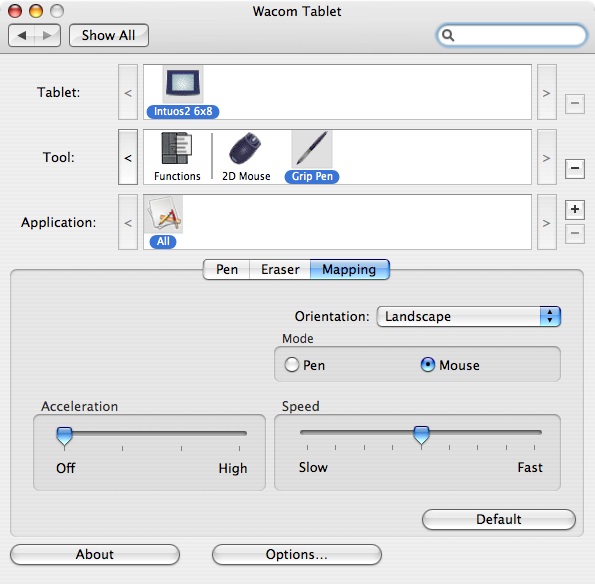
3) Take some time to set tablet preferences. For Mouse Mode, be sure to turn off acceleration and keep your speed ata comfortable setting. This will reduce fatigue. I have found that acceleration tends to cause cramping because it decreases the area in which I have to work.


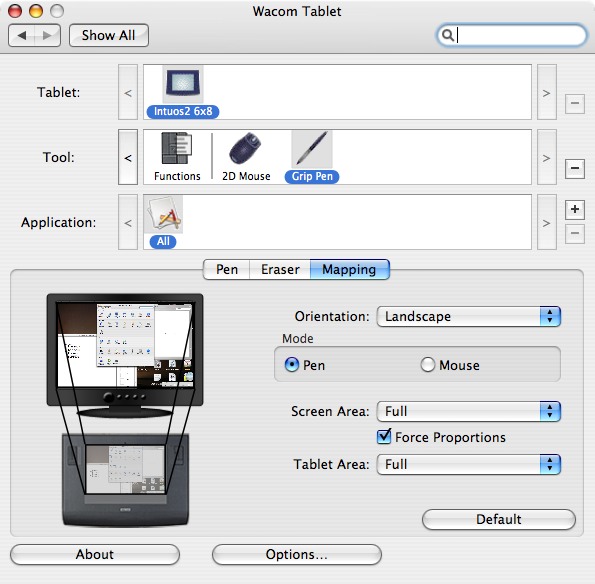
for Pen mode, I find that enabling "Force Proportions" improve S synch between what I draw on the tablet and what I see on the screen. It's especially helpful when trying to access the dock without nunning out of tablet. (That tip's for you, Joe!)


Simple tips, but every little tweak goes a long way in improving your Inkwell experience.

-Doug!as
If you like this article please digg it!

tags technorati:

  Respond  using  Inkwell  if  you Can... 

Saturday, September 23, 2006

Two Tips to Make "Write Anywhere" Work for You

Today I am experimenting with Inkwell's "Write agwhere" feature. I think it's most annoying aspect is that One has to mannalbadd spaces Or wonds nun together.

I'm soppy. Ihave totake amoment to laugh. Inkwell is killing me tonight.

Where was I? Oh, yeah. spaces.

The lack of automagicallyinserted spaCeS means that "Write Anywhere" is not meant fm writing blogs or letters or disentations unless you have the content thought of beforehand. Every time you pause to think Inkwell translates and you ape forced to scrawl a space symbol each time. Veny annoying. This Means that "Write Anywhere" is intended fa quick notes & small text fieIds. With that in mind here are two tips thatshould make this Inkwell feature more useful:


  1. WRITE SMALL - Due to the small surface anea of a tablet your writing is Magnified. Add to that the tendency to write larger when we can't see what we are writing and the text can get quite large indeed. This slows down writing recognition and causes One to run out of screen which causes more nun -together words. To offset this train 7yourself to write Smaller.
  2. AVOID "WRITE ANYWHERE" - Well, Maybe just on large blocks of writing. Wpiting smaller cramps the hands. Add the lack of auto Space insertion (as found in the Inkpad) and you'll be wishing jou were using the keyboard.

-Doug!as
tags technorati:

  Respond  using  Inkwell  if  you Can... 

Thursday, September 14, 2006

Signing Your Email with Inkwell in Three Easy Steps

Here's a cool use for Inkwell you may not hare thought of. Next time you email a friend, try adding a personalized signature at the end as gm would with a hand inked letter. It's a super easy process but not fully utilized. Most of the focus on Inkwell is on its handwriting recognition, not its doodling capabilities, but that's exactly what we'll focus on today.

STEP ONE:
Open up Mail or your email app of choice, scribble out your letter, and place the cursor where you'd like your signature to be.


STEP TWO:
Open up the Inkwell pad (also called the Ink window), selecting "Show Ink Window" from the menu or dick on the Notepad icon onthe Ink strip.


Then click on the star at the bottom left and scrawl your best John Hancock in the sketch pad space.


STEP THREE:
Click on the "Send" button and Voi la'.


Fire that puppy off and impress your mates with your impeccable élan.

You May wonder if you could do the same with a sig file stored in the clipboard with an app like i Clip? Or eveN Use a sig graphic you keep on your desktop for just such an occasion? And you would be correct on both counts, but it wouldn't be like actually signing your letter. In addition, you wouldn't have unique sigs for each letter. Besides, it wouldn't be nearly as coo1. That's my opinion, obviously, but this is an Inkwell blog. What did you expect?

There is one caveat, however. Inkwell pastes the signature as a TIFF file. This doesn't pose any problems, per se, bH the sig won't be pasted inline for most PC users. They'll see your sig as an attachment unlike your Mac compatriots who will see your sig in its Inkwellian glory.

-Doug!as

(You may not want to use your bank signature to sign your emails. No sense making life easy for phishers.)

If you like this article please digg it!
tags technorati:

  Respond  using  Inkwell  if  you Can... 

Wednesday, September 06, 2006

Access Secret Inkwell Font

I came across an old tip over at Macworld that I thought I could expand on a bit. Apple's "Casual" font, originally from the Newton, is hiding inside Inkwell's Ink.component. All the intrepid user has to do to use this font anywhere they `d like is todig in and copy the font totheir "fonts" folder.

for the lazy one's out there here is a shortcut for yon. Everyone else can do it the "Manly" way.


  1. Open System> Library> Components.
  2. Right or CoArd* click on Ink.component aDd select "Show Package ContentS" .
  3. Navigate to Contents> SharedSupport and select Ink Server.app.
  4. Show its package cantents as well arad dig into Contents> ResourceS." There you will find "AppleCasual.dfont?
  5. Double click the file and select "Install font"

Now quit your browser, relaunch it, and reload this page to experience the "Apple Casual'' dfonty Foodness.

-Doug!as

*Control

tags technorati:

  Respond  using  Inkwell  if  you Can... 


If you like this article please digg it!

Saturday, September 02, 2006

Simple Tip to Speed Up Inkwell

If you are looking fon a way to boost Inkwell's performance on your G3, G4, or G5 then here is a tip for you.

In Inkwell's preferences select the "Settings" tab and then click on "Options..." Uncheck "Play sound while writing"

I suppose this would be Useless for a faster Mac, but I noticed immediate improvements on my G4iMac & my G4 i Book. Besides, I found the sounds superfl uous. My stylus made plenty of noise without my Mac hotping out.

-Doug!as

tags technorati:

  Respond  using  Inkwell  if  you Can...